Fetching Clips from Twitch
How EzClap Detects and Fetches Twitch Clips
One of the most common questions is simple:
How do clips actually appear inside EzClap without me doing anything?
The answer is a background system inside EzClap called the Watcher.
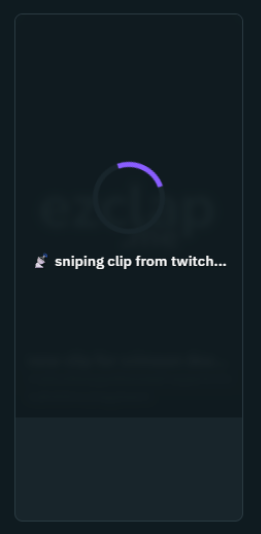
Every time a new clip passes your filtering rules, you will see a clip card like this. You don't need to have EzClap open during your stream — this is just a visual representation of "yeah, we saw your new clip, editing in progress," and it will be replaced by the actual clip once completed.
What the Watcher does
The Watcher is the part of EzClap that quietly monitors your Twitch channel for new clips.
There is no AI trying to guess the best moments from your stream. EzClap does not scan your full VOD looking for something "viral." Instead, the Watcher works with real clips that were actually created during your stream.
Every 2 minutes, EzClap checks your channel for newly created clips.
How clip detection works
When EzClap finds a new clip, it checks the clip creator against your filtering mode, set in Settings → Watcher Configuration:
- Disabled (Process Everyone) — the default. Every new clip on your channel is pulled in automatically.
- Whitelist — only clips created by users on your list (you, your mods, trusted VIPs) are processed automatically.
- Blacklist — everyone is processed except the users you block.
If a clip doesn't pass your filter
If a random viewer created the clip and your filtering rules exclude them, the Watcher ignores it for automatic processing.
That clip is not lost, though. You can still access and review user-created clips later through the Super Editor, which gives you manual control over anything in your channel's clip history.
If the clip passes
EzClap immediately pulls that clip into your workflow, and it moves into the next stage of processing automatically.
What happens after a clip is fetched
Once a clip is approved and fetched, EzClap starts applying your saved workflow settings in the background.
Depending on your setup, EzClap can automatically:
- apply your video template (the one assigned to the game, or your default)
- crop the clip to a vertical format
- place your gameplay and facecam correctly
- add your logo, if enabled
- generate subtitles and captions (auto-captioning is a Pro / Partner feature)
This means the repetitive editing work is already underway while you are still streaming or shortly after your stream ends.
Why this matters for Twitch streamers
The whole point of the Watcher is to remove friction.
You do not need to manually download clips, rename files, sort them into folders, or prepare them one by one. EzClap watches for approved clips, pulls them in automatically, and pushes them into your content workflow.
For Twitch streamers trying to stay consistent with TikTok, YouTube Shorts, or other vertical platforms, this saves a huge amount of time.
No guesswork, no clip chaos
EzClap keeps the process clean by combining two things:
- automatic clip detection
- filtering rules you control
That means you stay in control of what gets processed automatically, while still having access to everything else later if you want it.
Next step
Once clips are fetched into EzClap, the next part of the workflow is processing them with your layout — set that up in the Clip Wizard.