Your Workflow
EzClap Workflow: Review Clips, Add to Spotlight, and Publish Automatically
Once your setup is complete and your clip filtering is working, this becomes the main page you will actually care about.
This is the core EzClap workflow.
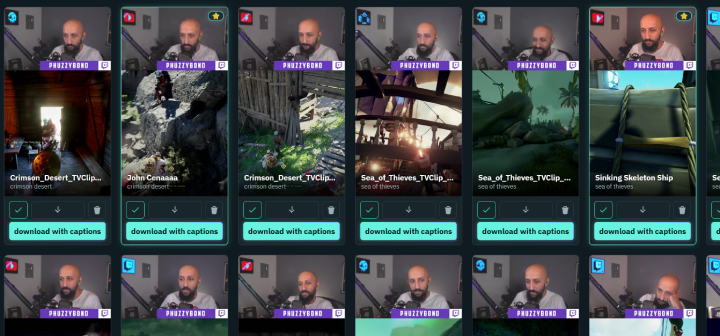
After your stream, or whenever you decide to log in, EzClap will already have a batch of processed clips waiting for you. Thanks to the Watcher, those clips were fetched in the background, formatted with your layout, and prepared with captions automatically.
That means when you open EzClap, you are not starting from scratch. You are reviewing clips that are already mostly done.
The main EzClap workflow
In most cases, your job is just to go through each clip quickly and decide whether it is worth publishing. Here is the basic checklist:
1. Watch the clip
Play the clip and make sure the timing feels right. This is the moment to catch anything obvious, like a slow start, awkward ending, or a moment that does not hit as well as expected.
2. Trim the clip if needed
If the clip starts too early or ends too late, adjust the start and end times in the clip editor. A small trim can make a huge difference in pacing, especially for short-form content where every second matters.
3. Set the video title
Choose the title you want the video to use on your social platforms. This title is used when EzClap publishes the clip to TikTok and YouTube Shorts, so it is worth making it clear and clickable.
4. Fix the captions
Read through the subtitles and correct any mistakes. Even strong transcription can still mishear gamer tags, slang, item names, accents, and loud or distorted audio. A quick caption cleanup helps the final video feel much more polished.
5. Add the clip to Spotlight
Once the clip looks good, click add to spotlight. That is the step that tells EzClap the clip is approved and ready to enter the publishing queue.
What Spotlight does
Spotlight is the approval queue for clips you actually want to post. Once a clip is in Spotlight, EzClap handles the rest of the workflow based on your publishing settings:
- scheduled posting
- DailyDrop publishing
- StreamSync publishing
- sending clips to your connected social accounts automatically
So instead of uploading clips manually one by one, you are just approving them and letting the system move them forward. Clips publish from left to right — drag them to change the order.
There is no Spotlight limit
One of the best parts of the workflow is that there is no limit to how many clips you can add to Spotlight. That means you can batch your content in advance:
- add 7 clips today, and EzClap can publish them gradually over the next week
- add 30 clips, and you can build a much longer publishing queue without needing to come back constantly
This is what makes EzClap a real set-and-forget system for Twitch streamers trying to stay active on short-form platforms.
Sharing clips outside the pipeline
Not every clip needs to go through the publishing machine. Each clip card also has a share button that creates a public link (ezclap.me/c/...) you can send to anyone — perfect for showing a moment to friends, your Discord, or a collab partner. Share links are opt-in per clip and can be revoked at any time.
Why this workflow matters
The goal of EzClap is not to turn every clip into a full editing project. The goal is to give you a fast workflow that helps you stay consistent.
Instead of:
- downloading clips manually
- editing them from scratch
- typing captions manually
- uploading them one by one
you are simply:
- reviewing processed clips
- making quick fixes
- approving the best ones
- letting EzClap handle the publishing side
That is a much easier way to stay active on TikTok, YouTube Shorts, and other short-form platforms.
A good weekly rhythm
A lot of streamers can treat EzClap like a quick review session instead of a daily chore. You log in, review a batch of processed clips, add the best ones to Spotlight, and let the publishing system drip them out over time. That means you may not need to come back every day at all.
Pro tip
Do not try to perfect every single clip. Check the timing, fix obvious caption mistakes, give it a decent title, Spotlight it, and move on. EzClap works best when you keep momentum and build consistency.
Next step
Once your day-to-day loop is running, the next step is managing user-created clips and the backlog that existed before you found EzClap — that is the Super Editor.