⚡ Super Editor
Super Editor for Batch Editing Twitch Clips
If you were streaming before you found EzClap, there is a good chance your Twitch channel already has a huge backlog of old clips.
Going through them one by one would be painfully slow.
That is exactly why Super Editor exists.
Super Editor is built for speed. It helps you go through older Twitch clips, skip the ones you already handled, and batch process multiple clips at once so you can turn old content into fresh short-form videos much faster.
What the Super Editor Does
The Super Editor connects directly to your Twitch clip history and gives you a faster way to work through older clips that were never processed before.
Instead of treating every clip like a separate editing project, it gives you a bulk workflow designed for creators who want to clear backlog quickly.
This is especially useful if you want to: - revive older clips from past streams - build up a large content queue - process user-created clips manually - prepare a backlog for scheduled posting
1. Smart Filtering
One of the most useful parts of Super Editor is that it helps prevent duplicate work.
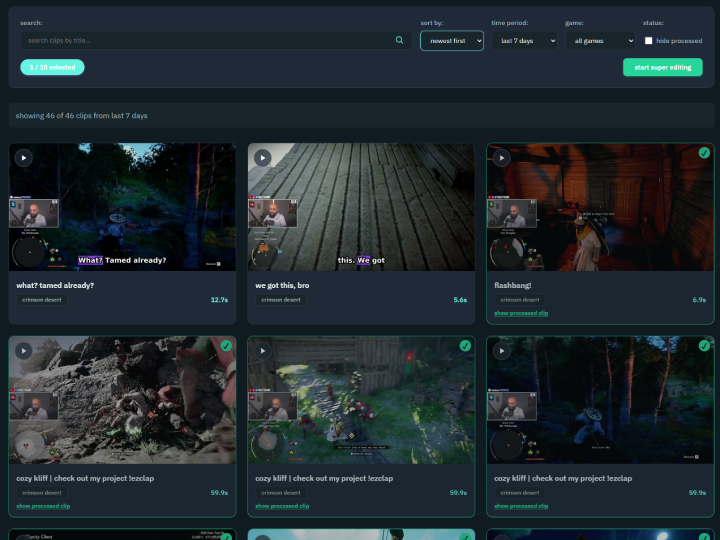
EzClap automatically filters out clips that have already been processed, so you are not wasting time reviewing the same content twice.
If a clip is already present in your EzClap dashboard, it will be marked in green so you can tell at a glance what has already made it into your workflow.
2. Batch Editing Up to 10 Clips at Once
This is the main power feature.
Instead of opening one clip, processing it, going back, then repeating that loop over and over, Super Editor lets you select up to 10 clips at the same time.
Once you make your selections, hit Process All.
EzClap then sends those clips into the processor and turns them into clips inside your dashboard, ready for the next stages of your workflow.
This saves a huge amount of time when you are clearing backlog or preparing content in bulk.
3. Manual Access to User-Created Clips
If you are using a clip whitelist in your settings, then the clips shown inside Super Editor will usually be user-created clips that were not automatically processed during your streams.
This gives you a second layer of control.
Your whitelist handles the clips that should move through automation automatically, while Super Editor gives you a way to manually review and process everything else.
In simple terms:
- Whitelist = automatic clip processing
- Super Editor = manual clip selection and batch processing
That makes Super Editor a great place to find hidden gems from your community without letting every random clip hit the automation pipeline automatically.
Why Super Editor Matters
Super Editor is useful because it turns your old Twitch clips into usable content instead of forgotten backlog.
For streamers trying to stay active on TikTok, YouTube Shorts, and other vertical platforms, older clips can still be valuable. You already made the content once. Super Editor just gives you a practical way to turn it into publishable short-form content without wasting hours.
A Good Workflow for Backlog Days
A simple way to use Super Editor is to set aside a short session once in a while just to clear backlog.
For example, you can spend 15 minutes reviewing older clips, batch process the best ones, and quickly build up a large queue of content for the rest of the month.
That is one of the easiest ways to prepare: - more Shorts - more TikToks - more scheduled content - more consistent posting without extra stream time
Pro Tip
If you want to fill your publishing queue fast, spend a short session in Super Editor every month and process a batch of older clips all at once.
It is an easy way to prepare a backlog of short-form content without needing to stream extra just to create more clips.
Next Step
Ofcorse, batch editing affects storage, this is why we have our special settings, and auto sweeper options that will help you keep your storage virtually unlimited. Settings & Auto Sweeper.