🛠️ Getting Set Up
How to Set Up EzClap
EzClap is built around automation, which means the goal is simple: set it up once, then let it do the repetitive work for you.
This guide walks you through the main parts of the initial setup so your Twitch clips can move smoothly from stream to short-form content.
1. Connect Your Accounts

The first step is connecting the accounts EzClap needs to do its job.
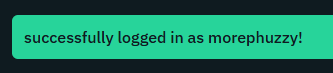
Start by linking your Twitch account so EzClap knows where to pull clips from. Then connect the social platforms where you want your finished videos to go, such as TikTok or YouTube.
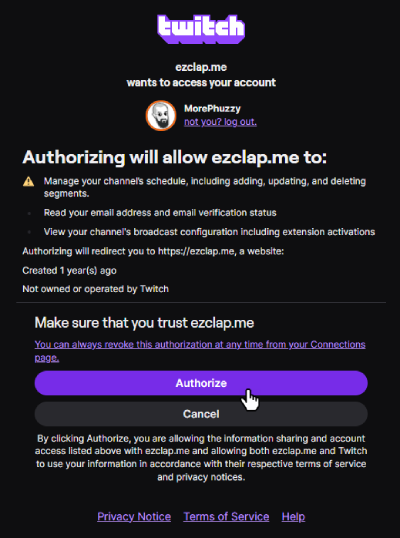
Once these accounts are connected, EzClap can detect new clips, process them, and publish them to your selected platforms.
2. Set Up Your Clip Whitelist
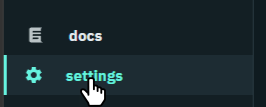
This step is important.
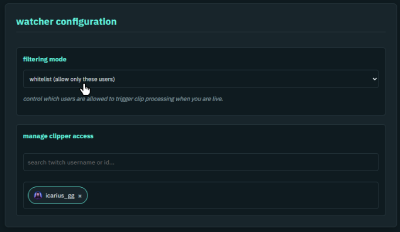
EzClap does not automatically process every random clip created on your channel. Anyone who streams knows chat can clip all kinds of weird things, and not every clip should go straight into your automated workflow.
Your clip whitelist tells EzClap which people are allowed to trigger automatic processing.
This usually includes: - you - your moderators - trusted VIPs - anyone else you want handling clips for automation
If a new clip is created by someone on the whitelist, EzClap can automatically pull it into your workflow.
Important note about the whitelist
The whitelist only controls which clips get automatically processed.
It does not mean clips made by other viewers are blocked forever.
EzClap also includes a feature called Super Editor, which lets you review and process user-created clips manually. So even if a clip was not made by someone on the whitelist, you can still choose to work with it later.
In simple terms:
- Whitelist = automatic processing
- Super Editor = manual review and processing of other clips
We will cover Super Editor in its own guide later.
3. Create Your Video Template
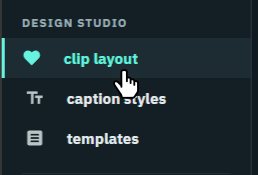
This is where you make your content look like your content.
Your template tells EzClap how to format clips automatically, so you do not need to rebuild the same layout every time.
In your template, you can set things like: - where the gameplay should appear - where your facecam should sit - subtitle fonts - caption colors - text animations
Once your template is saved, EzClap uses it as the visual structure for future clips.
4. Assign Templates by Game Type
One of the most useful parts of the setup is that you can create different templates for different types of games.
For example: - your facecam might sit on the left side for RPGs - your facecam might sit on the right side for FPS games
So instead of using one layout for everything, you can match games to specific templates.
For example: - Skyrim can use your RPG template - ARC Raiders can use your FPS template
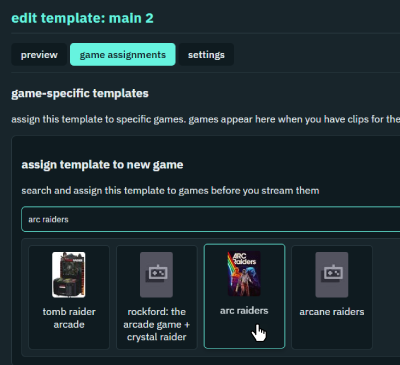
This helps your short-form content stay clean, readable, and consistent without manual repositioning every time.
Do not worry, any game that is not assigned to a template will use the default assigned template. You don't have to assign any games to templates if you only have one Stream Overlay and facecam position.
Once Setup Is Done, EzClap Does the Heavy Lifting
After your accounts are connected, your whitelist is ready, and your templates are saved, your workflow becomes much easier.
From there, EzClap can: - detect new clips from your Twitch stream - check whether the clip creator is approved - process clips using the correct template - prepare them for caption review and publishing
That is the whole point of the setup: do the work once, then let the system keep things moving.
Next Step
Once your setup is complete, the next step is learning how EzClap handles clips inside your workflow, from detection and bringing them to the dashboard with fetching clip.