🧬 Layouts & Templates
Layout Wizard and Game Templates
Every streamer has a different setup.
Your HUD, facecam position, overlay, and scene layout are not the same as everyone else’s, which means EzClap needs to know exactly how to turn your horizontal Twitch stream into a clean vertical short.
That is where Layouts and Templates come in.
This setup is split into two simple parts:
- Layout Wizard = where you visually draw and position everything
- Templates = where your saved layouts live and get assigned to games
1. The Layout Wizard
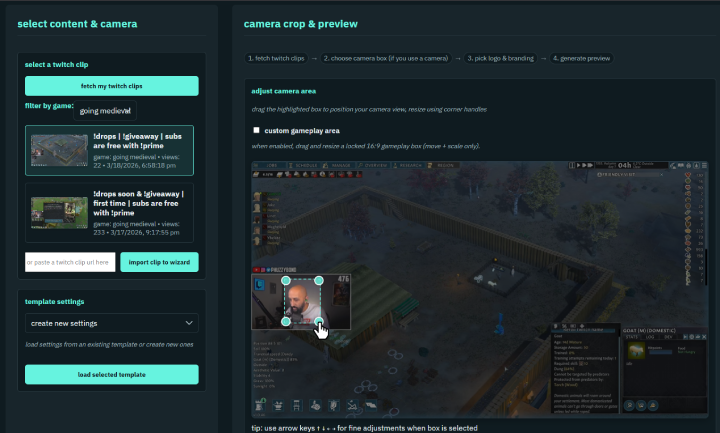
The Layout Wizard is a visual drag-and-drop editor that helps you define how your stream should be cropped for short-form content.
When you open it, EzClap loads a recent frame from your stream so you can work with a real screenshot instead of guessing.
From there, you place and resize the parts of the video you want EzClap to use.
Gameplay Box
By default, most of the time this does need to be enabled or set up, EzClap knows where the gameplay is, for example, if you use Top or Bottom of Clip Facecam, the remaining height will be the gameplay, centered to the screen. If you use Floating Camera, Gameplay will be the entire clip, centered and max height.
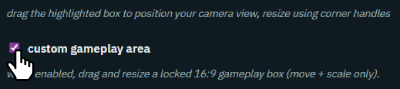
However, in certain scenarios, some streamers have their gameplay windowed or in a select area of the screen, this is where Custom Gameplay is require, you will be able to select that part of your Horizontal Preview, and EzClap will remember that as your gameplay area, this way Use the Gameplay Box to highlight the main gameplay area you want viewers to see in the final vertical clip.
Facecam Box
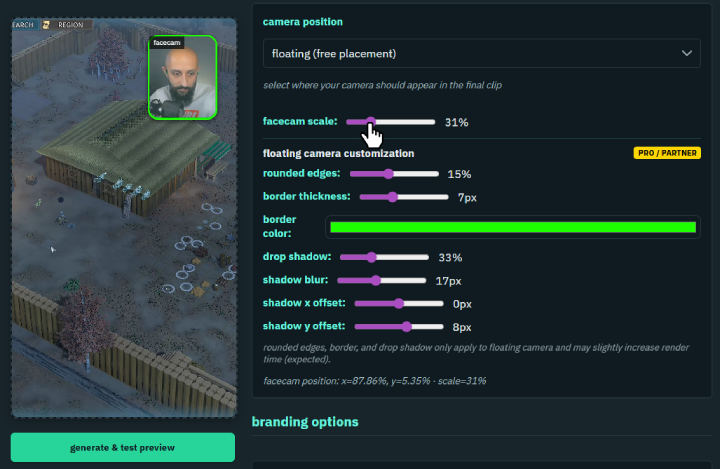
Use the Facecam Box to position your webcam correctly.
You can drag and resize it to fit tightly around your camera frame. If you do not use a facecam, you can simply turn the facecam layer off, this will allow full height gameplay of the clip.
Logo Placement
If you want your branding on clips, you can also upload your logo and place it exactly where you want it to appear.
Once saved, EzClap can apply that logo placement automatically to future clips.
Save Your Layout
Once everything looks right, save it.

That layout is now ready to become a reusable template.
2. The Templates Dashboard
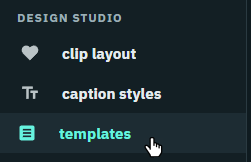
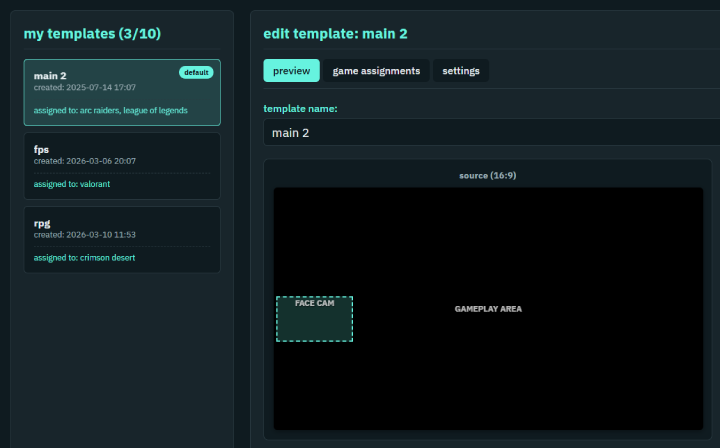
As soon as you save a layout in the Wizard, it becomes a Template and appears in your Templates Dashboard.
This page is your library of saved layouts.
From here, you can: - rename templates - delete old templates - adjust existing layouts - manage game assignments
This is where your workflow becomes powerful, because you are not limited to one single layout.
Game-Specific Templates
This is one of the most useful features in EzClap.
Many streamers do not keep the same facecam and overlay position across every game.
For example: - in Valorant, your facecam might be in the top left - in Just Chatting, your layout might be completely different - in League of Legends, your HUD may need a different crop entirely
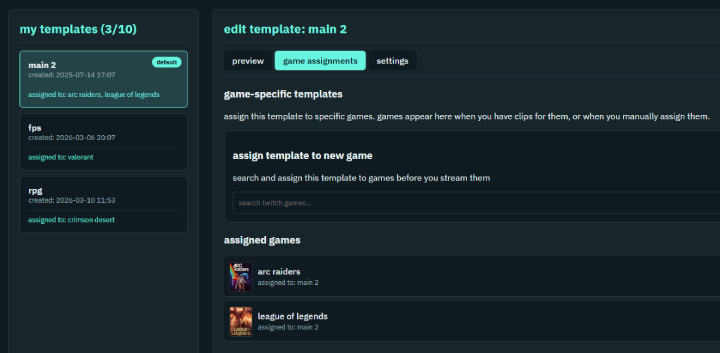
Instead of manually fixing your layout every time you switch games, EzClap lets you assign different templates to different games.
How Game Assignments Work
Here is the basic workflow:
- Create a layout for one game in the Layout Wizard and save it
- Create another layout for a different game and save that too
- Open the Templates page
- Click Assign Games
- Tell EzClap which template should be used for which game
For example:
- use Template A for Valorant
- use Template B for Just Chatting
Once that is set, EzClap handles the rest automatically.
If a clip is fetched while you are streaming Valorant, EzClap uses the Valorant layout.
If a clip is fetched while you are in Just Chatting, EzClap switches to that template automatically.
Why This Matters
This saves a huge amount of manual work.
You do not need to constantly re-crop clips, move boxes around, or fix layouts every time you switch categories or games. Once your templates are configured, EzClap already knows how each game should look.
That means: - cleaner vertical clips - better framing - more consistent branding - less manual editing
Set It Once, Let It Run
The goal of the Layout Wizard and Templates system is simple:
do the setup once, then let the automation handle the repetitive part
Once your templates are saved and assigned, EzClap can keep processing clips with the correct layout in the background without you needing to touch it again.
Next Step
Now that your layouts and templates are ready, the next step is understanding how EzClap processes and generates Captions for your clips.