🅰️ Caption Styles
Twitch Caption Styles and Subtitle Customization
Subtitles are one of the biggest parts of good short-form content.
If your captions look clean, readable, and well-timed, people are more likely to keep watching. That is why EzClap includes a built-in caption styling system that lets you create a consistent subtitle look across every clip you process.
Once you create a Caption Style and set it as your default, EzClap can automatically apply that style to future clips. The goal is simple: set your subtitle style once, then let the workflow stay consistent.
Basic Caption Settings
Typography & Colors
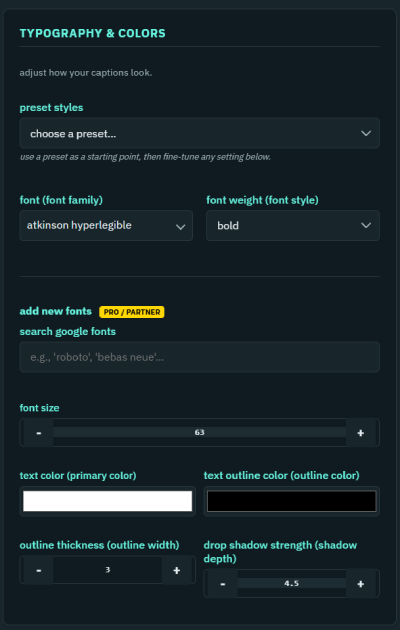
There are ready Font Presets in EzClap for a quick start, but it is highly recommended to customize your own, make it unique for your brand to ensure you stand out!
These are the main settings you will use to control the overall look and feel of your subtitles.
Font Choice
Choose the font you want EzClap to use for your captions.
You can pick from the built-in font library, including common options like Roboto and Montserrat, or browse a wider range of Google Fonts that are available under open font licenses.
Your font choice has a huge impact on how modern, readable, or energetic your videos feel.
Font Style
Choose whether your subtitles should appear as: - Regular - Bold - Italic
This helps define the overall tone of your captions.
Colors
You can customize: - Primary Color for the main subtitle text - Outline Color for the border around the text
The outline is especially important because it helps captions stay readable against gameplay, overlays, and busy backgrounds.
Text Case
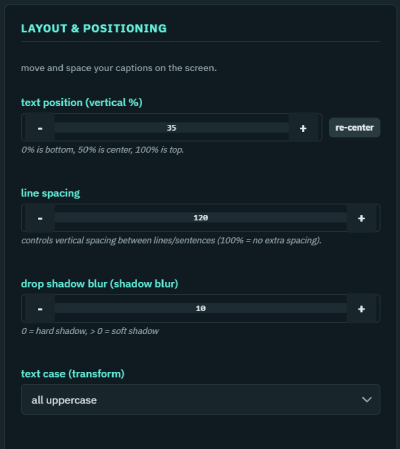
You can force subtitles to appear in: - uppercase - lowercase - normal sentence case
Animation and Effects
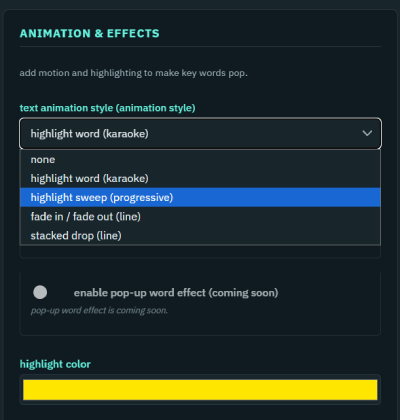
These settings control how subtitles appear, move, and react on screen. Feel free to customize these as you see fit. Rendering words is a high resource feature, so new animation effects like typewriter, pop up emphasis and more will be added as EzClap grows.
Advanced Caption Settings
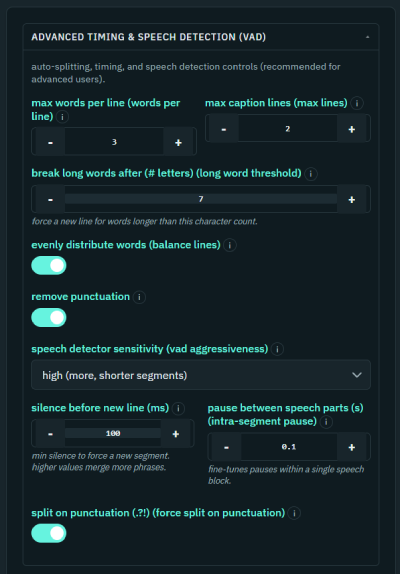
this is the most important part of captions, the more you fine tune this, the less you will have to modify captions for misheard words.
These settings are important for readability and pacing.
- Words Per Line
This controls how many words EzClap tries to show on one line before breaking the text apart.
Using fewer words per line can make captions feel: - larger - faster - more punchy - easier to read on mobile
- Max Lines
This controls whether captions stay limited to one line at a time or can stack into two lines.
That gives you more control over subtitle density and screen space.
- Long Word Threshold
This is a smart formatting feature.
If EzClap detects a very long word, such as a long name or a stretched-out reaction word, it can automatically place that word on its own line so it does not crush the rest of the subtitle layout.
This helps keep captions readable even when speech gets messy.
This is useful if you want a more aggressive all-caps style, or something cleaner and more natural.
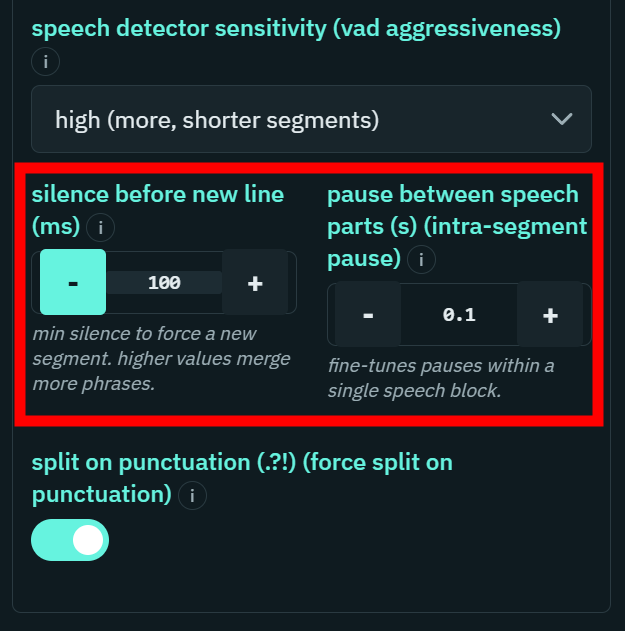
- Silence Between Words
This setting helps control how EzClap groups spoken words together.
If someone speaks very quickly, you may want to lower the silence threshold so the captions stay connected properly. If speech is slower and more spaced out, you can leave more room between words.
In simple terms, this setting helps shape the rhythm of your subtitles.
Best Way to Set Up Your Caption Style
A good workflow is:
- create your caption style
- save it as your default
- process a test clip
- review the subtitle look
- adjust spacing, colors, and animation until it feels right
Once it looks the way you want, EzClap can apply that same subtitle style to every future clip automatically.
Why Caption Styling Matters
For Twitch streamers posting to TikTok, YouTube Shorts, and other vertical platforms, subtitles are not just decoration.
They help with: - viewer retention - readability on mobile - silent viewing - brand consistency - overall video polish
A good subtitle style can make the difference between a clip feeling random and a clip feeling intentional.
Next Step
Once your caption style is set, the next step is reviewing generated captions, fixing small transcription mistakes, and deciding which clips should move into Spotlight for publishing through Clips Editor